Running LLMs Locally with Docker Model Runner
A practical guide to running large language models on your machine using Docker Model Runner. Learn how to set up, configure, and build applications with local LLMs - no cloud APIs required.
Running large language models locally has never been easier. Docker Model Runner brings the simplicity of container workflows to AI models - pull, run, and interact with LLMs using familiar Docker commands. This guide walks you through everything you need to get started.
Why Run LLMs Locally?
Before diving in, here's why local LLMs matter:
- Privacy: Your data never leaves your machine
- No API costs: Zero usage fees or rate limits
- Offline access: Works without internet connectivity
- Low latency: No network round-trips
Prerequisites
You'll need:
- Docker Desktop 4.40+ (with Model Runner support)
- 8GB RAM minimum (32GB recommended for larger models)
- 20GB+ free disk space for model storage
Verify your Docker installation:
docker --versionEnabling Docker Model Runner
Open Docker Desktop and navigate to Settings > AI. Enable Docker Model Runner and check host-side TCP support to access the API from your host machine. The default port is 12434, which you can change if needed. For CORS allowed origins, set it to All to allow requests from any origin, or configure a custom value if you want to restrict access to specific domains.
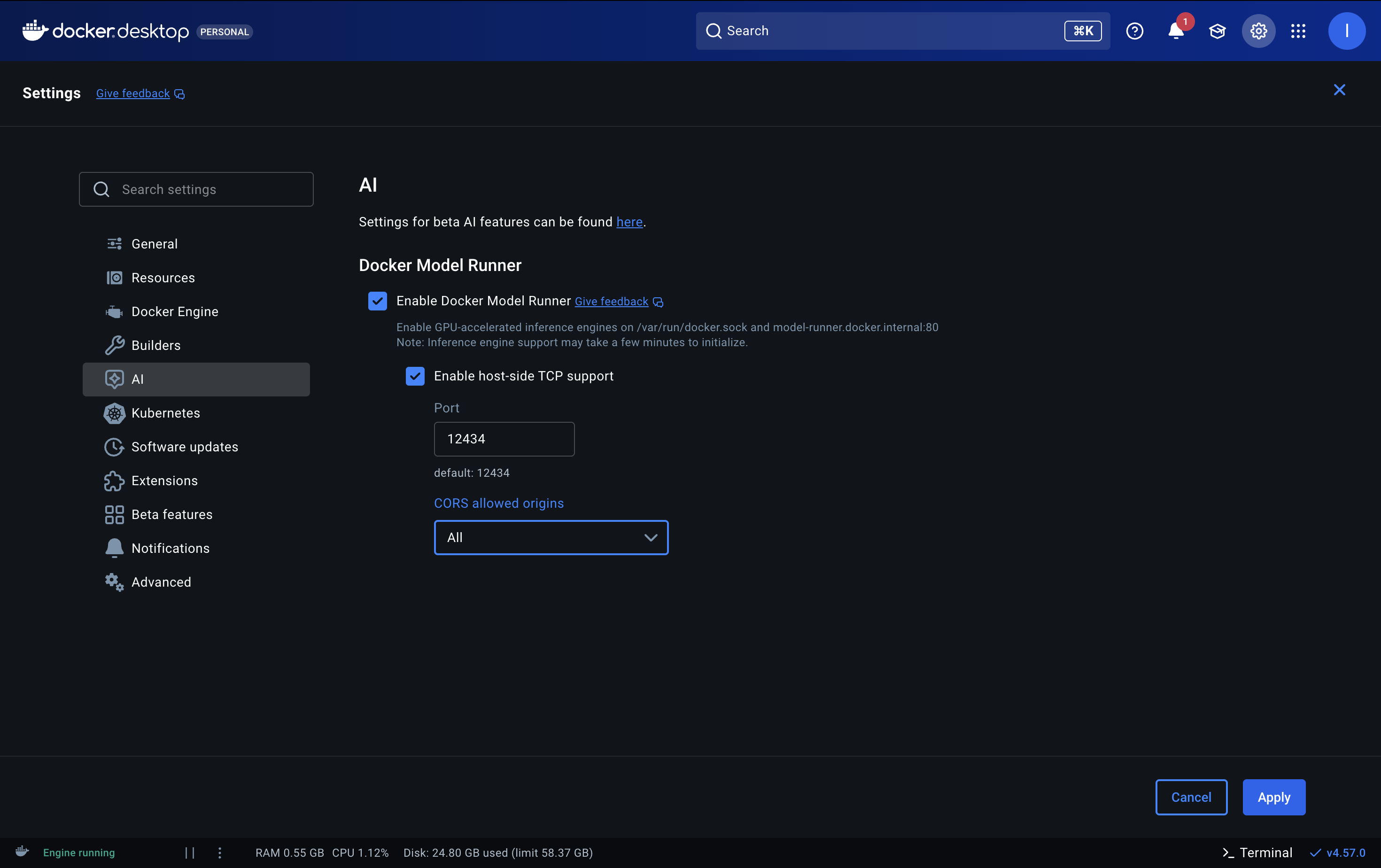
Click Apply and wait for Docker to restart. The inference engine may take a few minutes to initialize.
You can verify it's working by running:
docker model list

# If the command isn't recognized, you may need to link the CLI plugin:
ln -s /Applications/Docker.app/Contents/Resources/cli-plugins/docker-model ~/.docker/cli-plugins/docker-model
Understanding Inference Engines
Docker Model Runner supports two inference engines:
llama.cpp is the default and works everywhere - macOS (Apple Silicon), Windows, and Linux. It's optimized for running quantized models efficiently on consumer hardware.
vLLM is designed for production workloads with high throughput requirements. It requires NVIDIA GPUs on Linux x86_64 or Windows WSL2.
For most local development, llama.cpp is the right choice.
Model Selection Guide
Before pulling models, it helps to understand what's available. You can browse models directly in Docker Desktop by navigating to Models > Docker Hub. This gives you a visual catalog with descriptions, download counts, and one-click pulling.
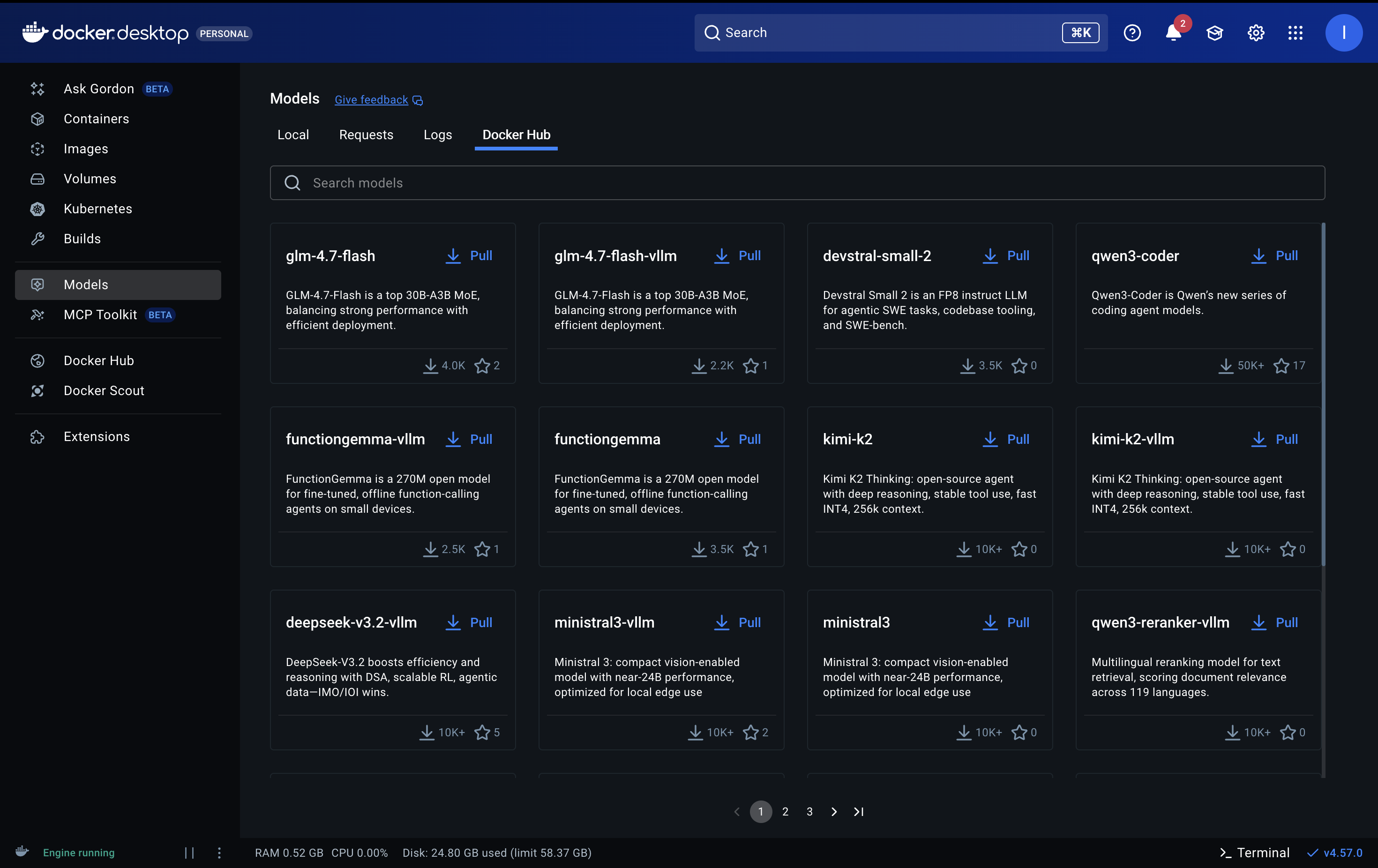
Choosing the right model depends on your hardware and use case:
Lightweight Models (Under 3B parameters)
Fast responses, minimal resource usage. Ideal for development, testing, and edge devices.
| Model | Parameters | Size | Best For |
|---|---|---|---|
ai/smollm2 | 360M | ~256MB | Quick prototyping, constrained devices |
ai/llama3.2:1B | 1B | ~1.3GB | On-device apps, summarization |
ai/llama3.2:3B | 3B | ~2GB | Instruction following, tool calling |
# SmolLM2 - Ultra-lightweight, great for testing
docker model pull smollm2

# Llama 3.2 1B - Best quality for size
docker model pull llama3.2:1B-Q8_0

# Llama 3.2 3B - Outperforms many larger models on specific tasks
docker model pull llama3.2:3B-Q4_K_M
Mid-Range Models (7B-14B parameters)
Better quality, requires more resources. Good for most practical applications.
| Model | Parameters | Size | Best For |
|---|---|---|---|
ai/mistral | 7B | ~4.4GB | General purpose, enterprise use |
ai/gemma3 | 9B | ~2.5GB | Research, reasoning tasks |
ai/phi4 | 14B | ~9GB | Complex reasoning |
ai/qwen2.5 | 7B | ~4.4GB | Multilingual, coding |
# Mistral 7B - Excellent all-around model
docker model pull mistral

# Qwen 2.5 - Great for code generation
docker model pull qwen2.5
Large Models (70B+ parameters)
Highest quality output, requires powerful hardware (32GB+ RAM recommended).
| Model | Parameters | Size | Best For |
|---|---|---|---|
ai/llama3.3 | 70B | ~42GB | Complex tasks, near-frontier quality |
ai/deepseek-r1-distill-llama | 70B | ~5GB | Advanced reasoning |
# Llama 3.3 70B - State-of-the-art open model
docker model pull llama3.3
Understanding Quantization
Model names often include a quantization suffix (like Q4_K_M or Q8_0) that indicates compression level:
- Q8_0: Highest quality, largest file size
- Q4_K_M: Good balance of quality and efficiency (recommended for most users)
- Q4_0: Smallest size, slightly lower quality
For most use cases, Q4_K_M offers the best trade-off between quality and performance.
Pulling Your First Model
Models are pulled from Docker Hub, just like container images:
# Pull a lightweight model for testing
docker model pull smollm2

# Or pull Llama 3.2 1B for better quality
docker model pull llama3.2:1B-Q8_0

# List your downloaded models
docker model list
Models are cached locally after the first download, so subsequent runs are instant.
Running a Model
Start a model with a simple command:
docker model run llama3.2:1B-Q8_0This starts an interactive chat session in your terminal. Type your prompts and get responses directly.
Interacting via API
Docker Model Runner provides OpenAI-compatible, Anthropic-compatible, and Ollama-compatible APIs. This means you can use existing SDKs and tools without modification.
API Endpoints
| From | Base URL |
|---|---|
| Host machine | http://localhost:12434 |
| Inside containers | http://model-runner.docker.internal |
For OpenAI SDK compatibility, use: http://localhost:12434/engines/v1
Using cURL
curl http://localhost:12434/engines/v1/chat/completions \
  -H "Content-Type: application/json" \
  -d '{
    "model": "ai/smollm2",
    "messages": [
      {"role": "system", "content": "You are a helpful assistant."},
      {"role": "user", "content": "What is Docker?"}
    ],
    "temperature": 0.7,
    "max_tokens": 500
  }'
Using Python with OpenAI SDK
Since the API is OpenAI-compatible, you can use the official OpenAI Python library:
from openai import OpenAI

client = OpenAI(
    base_url="http://localhost:12434/engines/v1",
    api_key="not-needed"  # No API key required for local models
)

response = client.chat.completions.create(
    model="ai/smollm2",
    messages=[
        {"role": "system", "content": "You are a helpful assistant."},
        {"role": "user", "content": "Explain Docker containers in simple terms."}
    ],
    temperature=0.7,
    max_tokens=500
)

print(response.choices[0].message.content)
Streaming Responses
For real-time output, enable streaming:
from openai import OpenAI

client = OpenAI(
    base_url="http://localhost:12434/engines/v1",
    api_key="not-needed"
)

stream = client.chat.completions.create(
    model="ai/smollm2",
    messages=[
        {"role": "user", "content": "Write a haiku about coding."}
    ],
    stream=True
)

for chunk in stream:
    if chunk.choices[0].delta.content:
        print(chunk.choices[0].delta.content, end="", flush=True)
Building a Simple Chatbot
Let's build a complete example - a terminal chatbot that maintains conversation history:
from openai import OpenAI

def create_chatbot():
    client = OpenAI(
        base_url="http://localhost:12434/engines/v1",
        api_key="not-needed"
    )

    messages = [
        {"role": "system", "content": "You are a helpful AI assistant. Be concise and friendly."}
    ]

    print("Local LLM Chatbot (type 'quit' to exit)")
    print("-" * 40)

    while True:
        user_input = input("\nYou: ").strip()

        if user_input.lower() in ['quit', 'exit', 'q']:
            print("Goodbye!")
            break

        if not user_input:
            continue

        messages.append({"role": "user", "content": user_input})

        try:
            response = client.chat.completions.create(
                model="ai/smollm2",
                messages=messages,
                temperature=0.7,
                max_tokens=1000
            )

            assistant_message = response.choices[0].message.content
            messages.append({"role": "assistant", "content": assistant_message})

            print(f"\nAssistant: {assistant_message}")

        except Exception as e:
            print(f"\nError: {e}")
            messages.pop()  # Remove failed user message

if __name__ == "__main__":
    create_chatbot()
Save this as chatbot.py and run it:
pip install openai
python chatbot.py
Using from Docker Containers
If your application runs in a Docker container, use the internal hostname:
from openai import OpenAI

client = OpenAI(
    base_url="http://model-runner.docker.internal/engines/v1",
    api_key="not-needed"
)
This allows containerized applications to access the local LLM without exposing ports to the host.
Troubleshooting
Model won't start
# Check if Docker Model Runner is enabled
docker model list

# Check Docker Desktop logs for errors
Slow responses
- Try a smaller model or higher quantization (Q4 instead of Q8)
- Ensure no other heavy processes are running
- Check if GPU acceleration is being used
Out of memory
- Use a smaller model
- Increase Docker's memory allocation in Docker Desktop settings
- Try a more aggressive quantization level
Conclusion
Docker Model Runner makes local LLM development accessible to everyone. With just a few commands, you can pull and run various open-source models, integrate with applications using familiar OpenAI-compatible APIs, and develop and test without cloud dependencies or costs.
Start with a small model like ai/smollm2 or ai/llama3.2:1B-Q8_0 to get familiar with the workflow, then scale up to larger models as your needs grow.
The combination of Docker's simplicity and local LLM capabilities opens up possibilities for privacy-focused applications, offline tools, and cost-effective AI development. The learning curve is minimal if you already know Docker.
The only question is what you will build with them!